How to Set Up Two-Factor Authentication
Two-factor authentication stops 99.9% of automated attacks on your accounts. This practical guide walks you through setting it up on every major platform, even if you've never done it before.

How to Set Up Two-Factor Authentication
“Two-factor authentication stops 99.9% of automated attacks on your accounts. This practical guide walks you through setting it up on every major platform, even if you've never done it before.”
Why Two-Factor Authentication Matters More Than Ever
Every day in the United Kingdom, thousands of online accounts are compromised. According to the UK Government's Cyber Security Breaches Survey 2025, 50% of businesses and 32% of charities reported some form of cyber security breach or attack in the previous twelve months. The single most effective step you can take to protect yourself is learning how to set up two-factor authentication on every account you own.
Two-factor authentication (often shortened to 2FA) adds a second layer of verification when you log in. Instead of relying on just a password, you also need something else: a code from your phone, a fingerprint scan, or a physical security key. Think of it like a front door with two different locks. Even if someone picks one, they still cannot get through the other.
Microsoft's security research team found that accounts protected by 2FA block 99.9% of automated attacks. Google reported similar findings, noting that adding a recovery phone number (which triggers SMS-based 2FA) blocked 100% of automated bots, 99% of bulk phishing attacks, and 66% of targeted attacks. These are not minor improvements. They represent the difference between being vulnerable and being virtually untouchable by most attackers.
Understanding the Different Types of Two-Factor Authentication
Before you start setting things up, it helps to understand the options available. Not all second factors are created equal, and choosing the right one depends on your needs, your devices, and your comfort level with technology.
SMS Text Message Codes
This is the most common type. After entering your password, the service sends a six-digit code to your mobile phone via text message. You type in that code to complete your login. It is simple and requires no extra apps.
However, SMS-based 2FA has known weaknesses. A technique called SIM swapping allows criminals to convince your mobile provider to transfer your number to their SIM card. The National Cyber Security Centre (NCSC) recommends using app-based authentication where possible. That said, SMS-based 2FA is still significantly better than no 2FA at all. If it is the only option a service offers, use it without hesitation.
Authenticator Apps
Authenticator apps generate time-based one-time passwords (TOTP) that refresh every 30 seconds. Popular options include Google Authenticator, Microsoft Authenticator, Authy, and the open-source app Aegis for Android. These apps work even without an internet connection once set up, because the codes are generated locally on your device.
This method is more secure than SMS because the codes never travel over the mobile network. There is nothing for an attacker to intercept. The NCSC lists authenticator apps as their recommended 2FA method for most individuals and organisations.
Physical Security Keys
Hardware security keys, such as YubiKey or Google Titan, are small USB or NFC devices that you plug in or tap against your phone when logging in. They offer the highest level of protection because they are immune to phishing. Even if you accidentally visit a fake website and enter your password, the security key will refuse to authenticate because it verifies the actual website address cryptographically.
Google reported that after requiring all 89,000 of its employees to use physical security keys in 2017, successful phishing attacks against staff dropped to zero. These keys typically cost between £20 and £60, and for anyone handling sensitive information, they are worth every penny.
Biometric Authentication
Fingerprint scans, facial recognition, and other biometric methods are increasingly used as a second factor. Apple's Face ID, Windows Hello, and Android's fingerprint sensors all fall into this category. Biometrics are convenient because you always have them with you, and they cannot be forgotten or lost like a phone or key.
How to Set Up Two-Factor Authentication on Major Platforms
Now for the practical part. Below you will find step-by-step instructions for the platforms most commonly used in the UK. The process for learning how to set up two-factor authentication varies slightly between services, but the general pattern is always the same: find the security settings, choose your second factor, and verify it works.
Google (Gmail, YouTube, Google Drive)
Google accounts are high-value targets because they often connect to your email, cloud storage, photos, and sometimes your phone's entire backup. Protecting your Google account should be your first priority.
Sign in to your Google account and navigate to myaccount.google.com. Click on "Security" in the left-hand menu. Under "How you sign in to Google," you will see "2-Step Verification." Click on it and follow the prompts. Google will first ask you to confirm your phone number for SMS verification. After that, you can add Google Authenticator or a security key as additional methods.
A particularly useful Google feature is the Google Prompt, which sends a simple "Yes or No" notification to your Android phone or iPhone with the Gmail app installed. It is faster than typing a code and resistant to most phishing attempts.
Apple (iCloud, App Store, Apple ID)
If you use an iPhone, iPad, or Mac, your Apple ID is the gateway to your entire digital life. On your iPhone, go to Settings, tap your name at the top, then tap Sign-In & Security, and select Two-Factor Authentication. Apple will walk you through adding a trusted phone number.
Apple's system is well integrated. When you sign in on a new device, a verification code appears automatically on your other Apple devices. You do not need a separate app. If you only have one Apple device, codes will be sent via SMS to your trusted phone number instead.
Microsoft (Outlook, OneDrive, Xbox)
Visit account.microsoft.com and sign in. Go to Security, then Advanced security options. Under "Additional security," find "Two-step verification" and click "Turn on." Microsoft supports its own Authenticator app, which offers passwordless sign-in as a bonus feature. You can also use any standard TOTP authenticator app, SMS, or email as your second factor.
The Microsoft Authenticator app deserves special mention. It can securely back up your 2FA codes to the cloud, which means if you lose your phone, you can restore everything on a new device. This solves one of the biggest practical headaches with authenticator apps.
Facebook and Instagram (Meta)
On Facebook, go to Settings & Privacy, then Settings, then Accounts Centre, and select Password and security. Click on Two-factor authentication and choose your account. Meta offers SMS codes, an authenticator app, or physical security keys. Instagram uses the same Accounts Centre, so enabling 2FA on one platform can protect both.
Given that Facebook accounts are frequently targeted for impersonation scams (Action Fraud received over 22,500 reports of social media account hacking in 2024), this is an especially important platform to secure.
WhatsApp's two-step verification works differently from most services. Open WhatsApp, go to Settings, then Account, then Two-step verification. You will be asked to create a six-digit PIN. WhatsApp will periodically ask you to enter this PIN to help you remember it. You can also add an email address for recovery purposes.
This PIN is required whenever you register your phone number with WhatsApp again, which prevents someone from hijacking your account by activating it on a different phone.
Online Banking
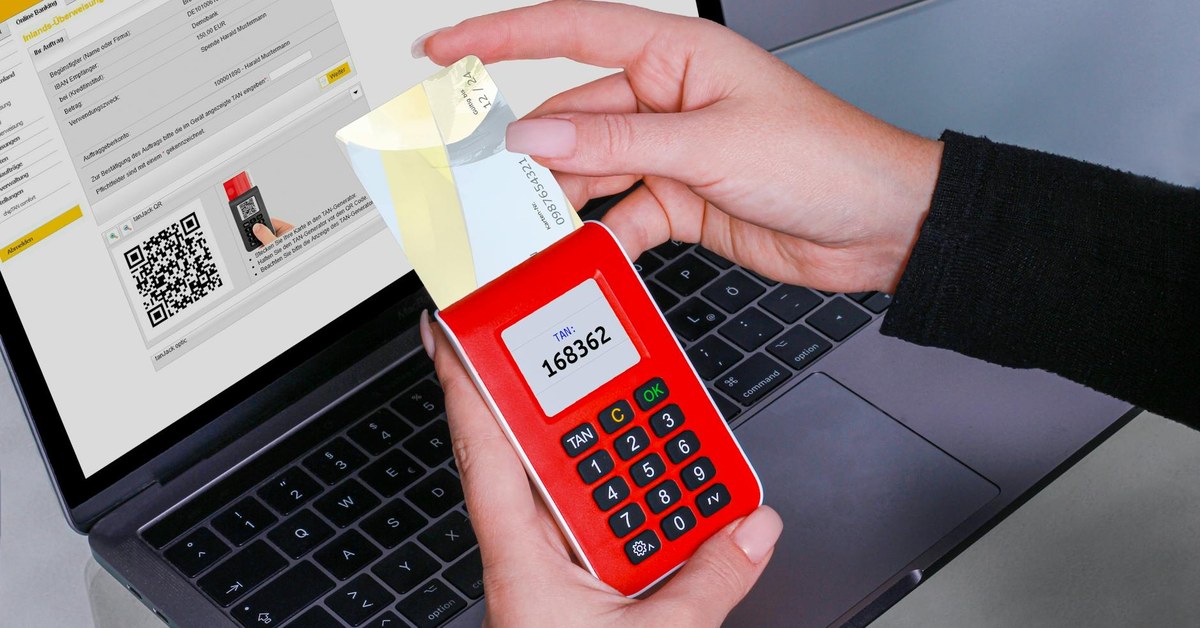
Most UK banks have already implemented strong customer authentication (SCA) as required by the Financial Conduct Authority. This typically involves confirming transactions through your banking app, using a card reader, or receiving one-time passcodes. If your bank offers additional 2FA options in their app settings, enable them. Check your bank's security settings page or contact their support line for specific guidance.
Amazon
Visit amazon.co.uk, go to Account, then Login & security. Next to "Two-Step Verification," click Edit, then Get Started. Amazon supports authenticator apps and SMS. Given that your Amazon account likely stores your payment details and home address, this is a high-priority account to protect.
Setting Up an Authenticator App: A Detailed Walkthrough
Since authenticator apps are the recommended method for most people, here is a thorough walkthrough of the setup process. This applies to any service that supports TOTP-based authenticator apps.
Step 1: Download Your Chosen App
Install an authenticator app from your phone's official app store. Google Authenticator (free, available on iOS and Android), Microsoft Authenticator (free, with cloud backup), and Authy (free, with multi-device sync) are all reliable choices. For privacy-focused users, Aegis (Android only, open source) and Raivo OTP (iOS only, open source) are excellent alternatives.
Step 2: Enable 2FA on the Service
Go to the security settings of the account you want to protect. Select the option to enable two-factor authentication and choose "Authenticator app" as your method. The service will display a QR code on your screen.
Step 3: Scan the QR Code
Open your authenticator app and tap the option to add a new account (usually a plus icon). Point your phone's camera at the QR code on your screen. The app will automatically recognise it and create a new entry. You will immediately see a six-digit code that changes every 30 seconds.
Step 4: Verify the Code
Enter the current six-digit code from your authenticator app into the website to confirm everything is working correctly. The service will verify that your app is generating the correct codes.
Step 5: Save Your Backup Codes
This step is critically important. Most services will provide a set of one-time backup codes after you enable 2FA. These codes allow you to access your account if you lose your phone. Write them down on paper and store them somewhere safe, such as a locked drawer or a home safe. Do not store them only on the phone that has your authenticator app, as losing that phone would mean losing both your codes and your backup simultaneously.
Common Mistakes to Avoid When Setting Up 2FA
Knowing how to set up two-factor authentication properly means understanding the pitfalls that catch people out. Here are the most common mistakes and how to avoid them.
Not Saving Backup Codes
This is by far the most frequent problem. People enable 2FA, skip the backup codes, and then lose access to their accounts when they get a new phone or their device breaks. Every time you enable 2FA, treat the backup codes as seriously as you would treat a house key. Print them or write them down on paper and store them securely.
Using Only One Method
Where possible, set up multiple second factors. For example, you might use an authenticator app as your primary method and register a physical security key as a backup. Google, Microsoft, and many other platforms allow multiple 2FA methods simultaneously.
Forgetting to Update 2FA When Changing Phones
Before you wipe or trade in your old phone, transfer your authenticator app data to your new device. Google Authenticator now supports cloud-based account transfer. Authy syncs across devices automatically. If you use an app without cloud backup, you will need to disable and re-enable 2FA on each service with your new phone, or use your backup codes.
Relying on a Single Email for Recovery
If your email account is compromised and it is also your recovery method for other accounts, an attacker could reset your passwords and bypass your 2FA. Ensure your primary email has the strongest possible 2FA protection, and consider having a separate recovery email that is not publicly known.
Two-Factor Authentication for Families
Digital security is a household concern, not just an individual one. If you are a parent or carer, helping your family understand 2FA is one of the most valuable digital skills you can pass on.
Helping Children and Teenagers
For children aged 13 and above who have their own social media or gaming accounts, sit down with them and set up 2FA together. Explain it in simple terms: "It is like having a secret handshake that only your phone knows, so even if someone guesses your password, they still cannot get into your account." Gaming accounts on platforms like Roblox, Fortnite (Epic Games), and Steam all support 2FA, and gaming accounts are frequently targeted by scammers.
Keep a copy of their backup codes yourself. Teenagers are more likely to lose access to their accounts than adults, and having those codes available saves considerable frustration.
Supporting Older Adults
For older family members who may be less comfortable with technology, the key is patience and simplicity. SMS-based 2FA is perfectly acceptable as a starting point because it requires no additional apps. Walk through the process step by step, and write down simple instructions they can refer to later. Phrases like "You will receive a text message with a number; just type that number in" are far more helpful than technical jargon about time-based one-time passwords.
Age UK reports that older adults are disproportionately targeted by online fraud, with victims aged 60 and over losing an average of £3,800 per incident. Two-factor authentication is one of the simplest and most effective defences against these attacks.
What to Do If You Get Locked Out
Even with the best preparation, lockouts can happen. Here is how to handle them calmly.
Use Your Backup Codes
This is exactly what they are for. When prompted for your 2FA code, look for a link that says "Try another way," "Use a backup code," or similar. Enter one of your saved backup codes. Each code typically works only once, so cross it off your list after use.
Contact the Service's Support Team
If you have no backup codes, you will need to go through the service's account recovery process. This usually involves verifying your identity through other means: answering security questions, providing identification documents, or confirming details about your account. Be aware that this process can take days or even weeks for some services, which is why backup codes are so important.
Prevent Future Lockouts
After regaining access, immediately set up 2FA again with fresh backup codes. Consider using an authenticator app with cloud backup, such as Microsoft Authenticator or Authy, to reduce the risk of losing your codes when switching devices.
Advanced Tips for Maximum Security
Once you have the basics covered, these additional steps will strengthen your security posture further.
Use a Password Manager Alongside 2FA
Two-factor authentication works best when paired with strong, unique passwords for every account. A password manager like Bitwarden (free and open source), 1Password, or Dashlane generates and stores complex passwords so you do not have to remember them. Some password managers can also store and autofill TOTP codes, though security purists prefer keeping passwords and 2FA codes in separate apps.
Prioritise Your Most Important Accounts
If enabling 2FA on everything at once feels overwhelming, start with these accounts in order of priority: your primary email, your online banking, your cloud storage (Google Drive, iCloud, OneDrive), your social media profiles, and then everything else. Your email account is the most critical because it is the key to resetting passwords on virtually every other service you use.
Review Your 2FA Settings Regularly
At least once a year, review which accounts have 2FA enabled, ensure your backup codes are still accessible, and check that your phone number and recovery email are up to date. Think of it as a digital equivalent of testing your smoke alarms.
The Future of Authentication
The technology world is moving towards passkeys, a new standard developed by the FIDO Alliance that eliminates passwords entirely. Passkeys use cryptographic key pairs stored on your devices, authenticated by biometrics or a device PIN. Apple, Google, and Microsoft have all committed to supporting passkeys across their platforms, and adoption is accelerating rapidly in 2026.
However, the transition will take years. In the meantime, two-factor authentication remains the most important security measure available to you. Learning how to set up two-factor authentication today protects you right now, and the habits you build will make adopting passkeys and other future technologies much easier.
Taking the First Step
You do not need to secure every account in one sitting. Start with just one. Open your email provider's security settings right now and enable two-factor authentication. It will take less than five minutes, and those five minutes could save you from months of stress, financial loss, and the deeply personal violation of having your digital life exposed to strangers.
Every account you protect is a door you close to attackers. Every backup code you save is insurance against lockout. And every family member you help set up 2FA is someone safer online. The tools are free, the steps are straightforward, and the protection is extraordinary.