Nintendo Switch Parental Controls
A complete guide to setting up the Nintendo Switch Parental Controls app, covering play time limits, content restrictions, online communication settings, and how to monitor your child's gaming activity.
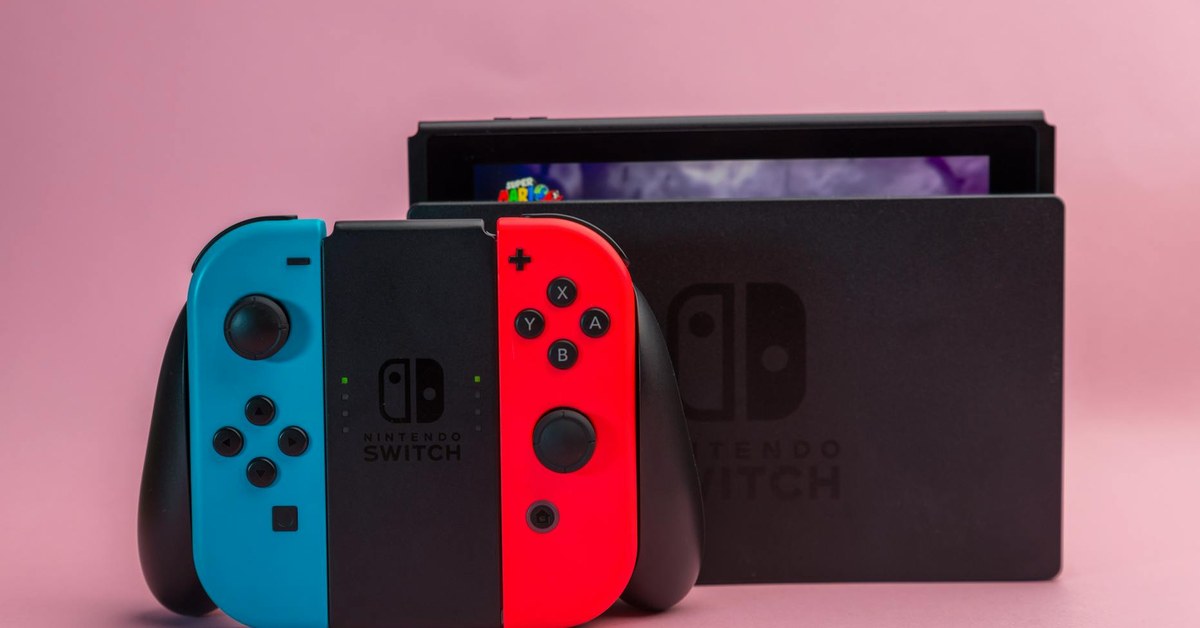

Nintendo Switch Parental Controls
“A complete guide to setting up the Nintendo Switch Parental Controls app, covering play time limits, content restrictions, online communication settings, and how to monitor your child's gaming activity.”
Nintendo Switch and Family Safety
The Nintendo Switch is one of the most family-friendly gaming consoles available, popular with children of a wide range of ages thanks to its diverse game library and hybrid home and portable design. Nintendo has invested significantly in parental control tools, offering a free dedicated app that makes managing your child's gaming experience straightforward and flexible.
This guide covers everything you need to set up parental controls on the Nintendo Switch, both through the console itself and through the Nintendo Switch Parental Controls app.
The Nintendo Switch Parental Controls App
The Nintendo Switch Parental Controls app is available free of charge on iOS (iPhone and iPad) and Android devices. It connects to your Nintendo Switch console and allows you to manage most parental control settings directly from your smartphone, without needing to access the console itself. This is particularly useful for making adjustments remotely or checking on your child's gaming activity.
Download the app first, before beginning setup on the console. You will need your Nintendo Account credentials, or you can create a free Nintendo Account during setup if you do not already have one.
Step 1: Link the App to Your Nintendo Switch
On the Nintendo Switch, go to System Settings, then Parental Controls, then Use the Parental Controls App. The console will display a pairing code. Open the Nintendo Switch Parental Controls app on your smartphone, tap Sign In, and follow the prompts to connect your smartphone to the console using the pairing code.
Once linked, you can manage settings from either the app or the console. The app is generally easier to use for ongoing management.
Step 2: Set a Restriction Level
The app offers three preset restriction levels for quick setup:
- Child (6 and under): Only games rated suitable for all ages, no online communication features, no sharing of screenshots to social media.
- Pre-teen (7 to 12): Games rated for ages 12 and under, restricted communication with non-friends, social media sharing limited.
- Teen (13 to 17): Games rated for teens, more open communication settings, social media sharing allowed with some restrictions.
You can also customise settings individually if the presets do not suit your family's needs.
Step 3: Configure Play Time Limits
One of the most popular features of the Nintendo Switch parental controls is the ability to set daily play time limits. In the app, tap Play Time Limit and set the number of hours and minutes allowed per day. You can also set an alarm at a specific time of day, which works independently of the total time limit.
When the time limit is reached, the console displays a notification. You can choose what happens next:
- The console can be set to suspend gameplay automatically after the limit is reached.
- Alternatively, it can simply display a notification and leave it to the child to stop playing, which is more appropriate for older, more trustworthy children.
If your child requests extra time on a particular day, you can approve this from the app with a single tap, which is a helpful feature that puts you in control without requiring a confrontation.
Step 4: Restrict Content by Rating
Under Restriction Level in the app, you can set the maximum age rating for games your child can access. Games with a higher rating will be locked and cannot be launched without the parental control PIN.
Nintendo uses the age rating system appropriate to your region. In Europe, this means PEGI ratings. In North America, ESRB ratings apply. The console automatically applies the correct system based on your region settings.
Step 5: Manage Online and Communication Features
Under Parental Controls, you can individually manage the following online features:
- Online Play: Allow or restrict multiplayer gaming with other users online.
- Local Play: Allow or restrict nearby wireless multiplayer (with other Switch owners in the same location).
- Communication with Others: Restrict who your child can communicate with within games. Some games have built-in chat or messaging features.
- Sharing to Social Media: Prevent screenshots and videos taken in games from being shared to social media accounts.
- Miiverse / Online Profile: Control whether your child's online gaming profile is visible to others.
Step 6: Set a PIN
In the app or on the console, set a four-digit PIN that is required to change parental control settings or override restrictions. Keep this PIN private. If your child knows the PIN, they can bypass the controls, or request temporary overrides from the console directly.
Step 7: Review Activity Reports
The app provides a monthly summary of your child's gaming activity, including how long they played each day, which games they played, and how many times their time limit was reached or overridden. This report gives a clear picture of gaming patterns over time.
Use this data not as a surveillance report to be confronted with, but as a conversation starter. If your child has been playing one game for hours each day, ask them about it. Understanding what they enjoy and why is more valuable than the raw data alone.
Console-Level Controls Without the App
If you prefer to manage parental controls directly on the console without the app, you can access most settings by going to System Settings, then Parental Controls. You will set a PIN here as well. Console-level controls include content restrictions, online feature restrictions, and the ability to restrict specific console functions such as posting screenshots online or editing user information.
Tips for Nintendo Switch Safety
- The Switch is portable. Unlike a home console, it can be taken to other locations where your supervision is lower. Consider whether the controls you set on the device are appropriate for unsupervised use on the go.
- Nintendo Switch Online. If your child uses Nintendo Switch Online for multiplayer gaming, review which games they play online and who they interact with. Some Nintendo games have robust online communities; others are more open.
- Game ratings on eShop. If your child has access to the Nintendo eShop to download games, ensure the content rating restriction is set appropriately. Purchases on the eShop by a child account under family management will require parental approval by default.
- Physical game cards. Parental controls based on age ratings apply to digital content. A physical game card can be inserted and played regardless of download restrictions if content rating restrictions are not also configured on the console itself. Set console-level restrictions to cover physical games as well.
Making Controls Part of a Broader Approach
The Nintendo Switch Parental Controls app is an excellent tool, but like all parental controls, it works best as one part of a broader approach that includes conversation, engagement, and gradually increasing trust. Playing Switch games with your child, asking about what they are enjoying, and talking about who they are playing with online are all valuable investments in your child's safety that no app can fully replicate.