Parents' Guide: Mastering Instagram Privacy Settings to Protect Your Child's Digital Footprint
A comprehensive guide for parents on how to configure Instagram's privacy settings to safeguard your child's personal data and digital footprint effectively.
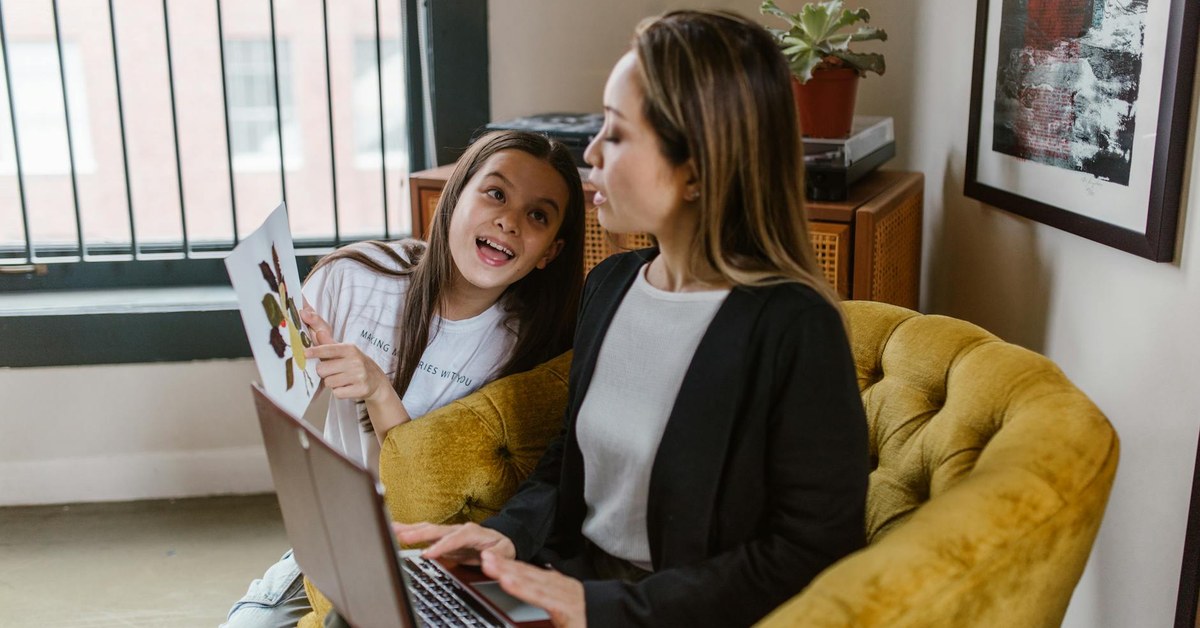

Parents' Guide: Mastering Instagram Privacy Settings to Protect Your Child's Digital Footprint
“A comprehensive guide for parents on how to configure Instagram's privacy settings to safeguard your child's personal data and digital footprint effectively.”
As children navigate the complexities of the digital world, platforms like Instagram become central to their social lives. However, without proper precautions, these platforms can expose them to various risks. Understanding and configuring Instagram’s privacy settings is essential for parents to effectively protect a child’s Instagram privacy and manage their digital footprint. This guide provides actionable steps to ensure your child’s online experience is as safe and secure as possible.
Understanding the Digital Landscape: Why Instagram Privacy Matters
The internet offers immense opportunities for connection and learning, yet it also presents challenges, particularly for younger users. Children’s online activities contribute to a permanent digital footprint, which can influence their future opportunities and expose them to risks if not carefully managed. According to a 2023 report by the World Health Organisation (WHO), millions of children worldwide are at risk of online exploitation, underscoring the critical need for robust digital safety measures.
Instagram, with its visual-first approach, is hugely popular among teenagers. While it can be a creative outlet, sharing personal information, photos, and location data can inadvertently lead to privacy breaches, cyberbullying, or contact from strangers.
“A digital safety expert at the Internet Watch Foundation advises, ‘Parents must recognise that privacy settings are the first line of defence against unwanted interactions and data exposure for children online. These settings empower families to control who sees their child’s content and who can interact with them.’”
Parents play a crucial role in educating their children about online safety and implementing technical safeguards. This involves not only understanding the platform’s features but also fostering open communication about responsible online behaviour.
Instagram’s Age Requirements and Parental Supervision Tools
Instagram’s official policy states that users must be at least 13 years old to create an account. This age limit is in place to comply with global child protection regulations. If your child is under 13, they should not have an Instagram account. If they do, you can report it to Instagram for removal.
For children aged 13 and over, Instagram has introduced “Supervision” tools as part of its Family Centre. This feature allows parents to link their accounts to their child’s, providing a layer of oversight. With Supervision, parents can:
- View how much time their child spends on Instagram.
- Set daily time limits for app usage.
- See who their child follows and who follows them.
- Receive notifications when their child reports an account or content.
It is important to note that Supervision requires the child’s consent to link accounts. This process should involve an open discussion about the reasons for parental oversight, focusing on safety rather than surveillance. [INTERNAL: talking to your child about online safety]
Key Takeaway: Instagram’s minimum age is 13. For eligible children, utilise Instagram’s “Supervision” tools to monitor activity and set boundaries, always initiating these steps with open communication and consent.
Step-by-Step Guide to Mastering Instagram Privacy Settings
Navigating Instagram’s settings can seem daunting, but systematically adjusting them can significantly enhance your child’s privacy. Here’s how to configure the most important settings:
1. Set the Account to Private
This is the single most important step to protect child’s Instagram privacy. A private account means only approved followers can see your child’s posts, stories, and follower list.
How to do it: 1. Open Instagram and go to your child’s profile. 2. Tap the three horizontal lines (menu icon) in the top right corner. 3. Select ‘Settings and privacy’. 4. Scroll down to ‘Who can see your content’ and tap ‘Account privacy’. 5. Toggle the ‘Private account’ switch to the ‘on’ position. Confirm the change if prompted.
2. Manage Interaction Controls
Controlling who can interact with your child’s content is crucial for preventing unwanted contact and cyberbullying.
a. Comments
Restrict who can comment on your child’s posts. 1. Go to ‘Settings and privacy’ > ‘Who can see your content’ > ‘Comments’. 2. Choose ‘Allow comments from’: ‘People you follow and your followers’ is the safest option. You can also block specific users from commenting.
b. Tags and Mentions
Prevent others from tagging or mentioning your child in posts, stories, or comments without their approval. 1. Go to ‘Settings and privacy’ > ‘How others can interact with you’ > ‘Tags and mentions’. 2. For ‘Allow tags from’, select ‘No one’ or ‘People you follow’. 3. For ‘Allow mentions from’, select ‘No one’ or ‘People you follow’.
c. Messages
Control who can send direct messages (DMs) to your child. 1. Go to ‘Settings and privacy’ > ‘How others can interact with you’ > ‘Messages and story replies’. 2. Under ‘Message controls’, adjust settings for ‘Your followers on Instagram’ and ‘Others on Instagram’. For maximum safety, set ‘Others on Instagram’ to ‘Don’t receive requests’.
d. Story Replies
Limit who can reply to your child’s stories. 1. Within ‘Messages and story replies’, under ‘Story replies’, select ‘Allow message replies from’ and choose ‘People you follow’.
3. Control Content Visibility
These settings help manage the type of content your child sees and prevent sensitive material from appearing.
a. Sensitive Content Control
This feature allows users to limit the amount of sensitive content they see. 1. Go to ‘Settings and privacy’ > ‘What you see’ > ‘Sensitive content control’. 2. Select ‘Less’ to see fewer photos and videos that could be upsetting or offensive.
b. Hidden Words
Filter out offensive words, phrases, and emojis from comments and message requests. 1. Go to ‘Settings and privacy’ > ‘How others can interact with you’ > ‘Hidden words’. 2. Toggle ‘Hide comments’ and ‘Hide message requests’ to ‘on’. 3. You can also add custom words or phrases to a ‘Custom word list’ that you want to hide.
4. Manage Data Privacy and Activity
Reviewing how Instagram uses data and displays activity can further protect your child’s privacy.
a. Activity Status
Hiding activity status prevents others from seeing when your child was last active on Instagram. 1. Go to ‘Settings and privacy’ > ‘How others can interact with you’ > ‘Messages and story replies’. 2. Toggle ‘Show activity status’ to ‘off’.
b. Location Services
Ensure location services for Instagram are turned off on the device itself. Instagram does not have an in-app setting to disable location for posts; it relies on the device’s privacy settings. 1. On the mobile device, go to ‘Settings’. 2. Find ‘Privacy’ or ‘Location Services’. 3. Locate Instagram in the app list and set its location access to ‘Never’ or ‘Ask Next Time’.
c. Third-Party Apps and Websites
Review any third-party apps or websites connected to your child’s Instagram account, as these can sometimes access personal data. 1. Go to ‘Settings and privacy’ > ‘Your app and media’ > ‘Website permissions’. 2. Review ‘Connected apps and websites’ and remove any unfamiliar or unnecessary connections.
5. Educating Your Child: The Human Firewall
Technology is only one part of the solution. The most effective defence against online risks is an educated child. Foster an environment where your child feels comfortable discussing their online experiences and concerns.
- Discuss the “Think Before You Post” rule: Anything shared online can be permanent.
- Explain the dangers of strangers: Emphasise never to share personal details (full name, address, school, phone number, real-world meeting plans) with anyone they don’t know in real life.
- Teach critical thinking: Help them recognise suspicious messages, phishing attempts, or requests that seem too good to be true.
- Model good behaviour: Show them how you manage your own digital presence responsibly.
- Regular check-ins: Periodically review privacy settings together and discuss any new features or concerns.
- Understand their digital footprint: Help them grasp that everything they post creates a lasting record. [INTERNAL: understanding digital footprints]
What to Do Next
Taking proactive steps now can significantly enhance your child’s safety online.
- Review and Adjust Settings: Sit down with your child and go through each of the privacy settings outlined above on their Instagram account, explaining the importance of each adjustment.
- Activate Supervision Tools: If your child is 13 or older, enable Instagram’s Supervision tools within the Family Centre to gain valuable insights and set healthy boundaries.
- Maintain Open Communication: Regularly talk to your child about their online activities, friends, and any uncomfortable experiences, ensuring they know you are a trusted resource.
- Consider Device-Level Controls: Explore parental control software or device-level settings that can complement Instagram’s features by managing screen time and app access across all devices.
- Stay Informed: The digital landscape constantly evolves. Regularly check for updates from Instagram and reputable child safety organisations regarding new features and emerging online risks.
Sources and Further Reading
- Instagram Safety Centre: help.instagram.com/477434105650005
- NSPCC (National Society for the Prevention of Cruelty to Children) Online Safety: www.nspcc.org.uk/keeping-children-safe/online-safety/
- UNICEF (United Nations Children’s Fund) Child Online Protection: www.unicef.org/protection/child-online-protection
- Internet Watch Foundation: www.iwf.org.uk
- World Health Organisation (WHO) Digital Health and Children: www.who.int/teams/social-determinants-of-health/demographics-and-gender/adolescent-health-and-well-being/digital-health-and-children